Get Started with PerksPe Mobile
The PerksPe mobile app brings the power of employee benefits and expense management directly to your fingertips. This guide will walk you through the setup process and key features of the mobile experience.
Step 1: Install the App
Download the official PerksPe mobile app to manage your benefits on the go.
- Android Users: Download PerksPe from the Google Play Store.
- iOS Users: Download PerksPe from the Apple App Store.
Step 2: Secure Login
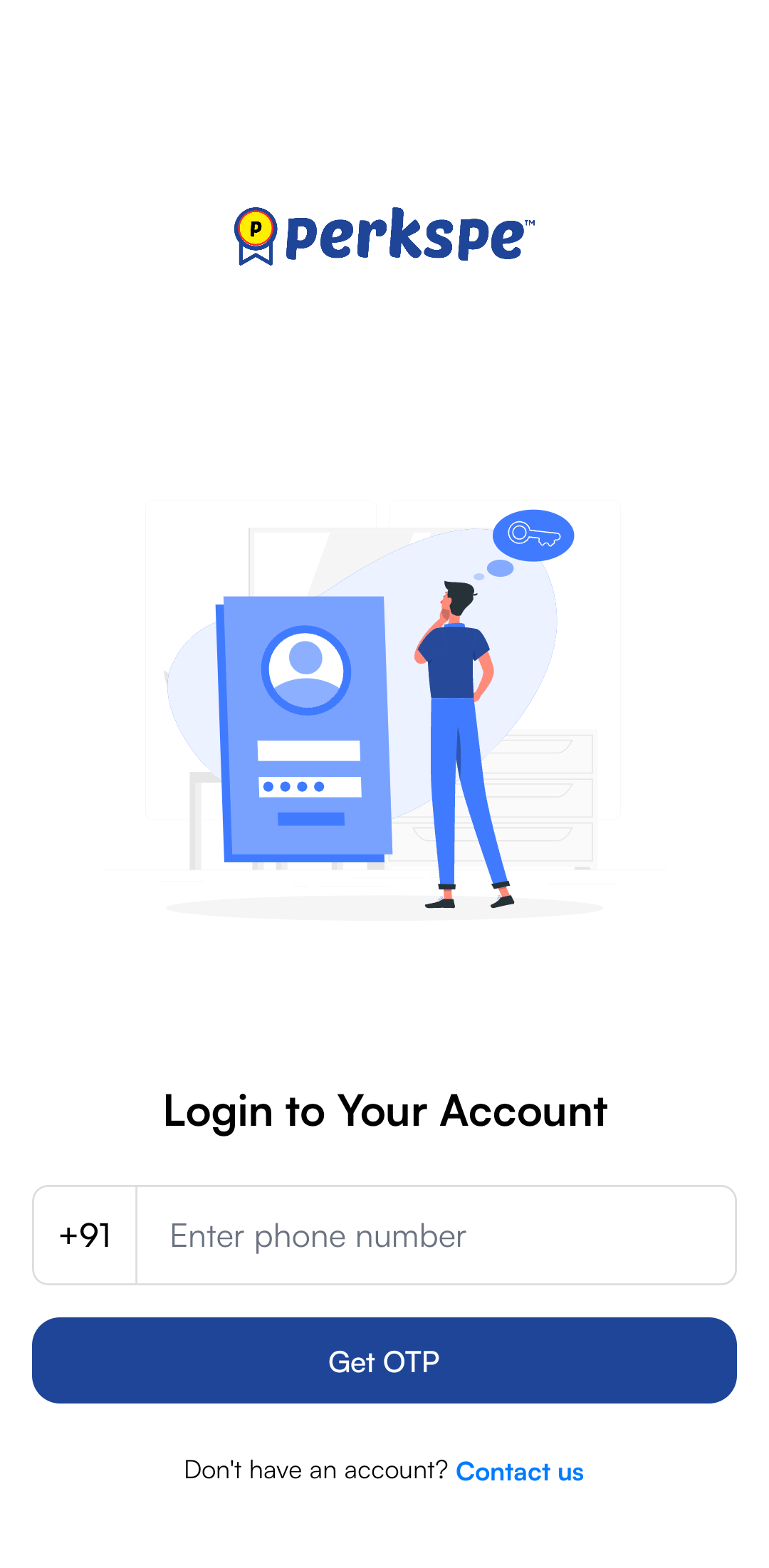
Log in using your registered mobile number to access your personalized dashboard.
- Open the PerksPe app.
- Enter your mobile number.
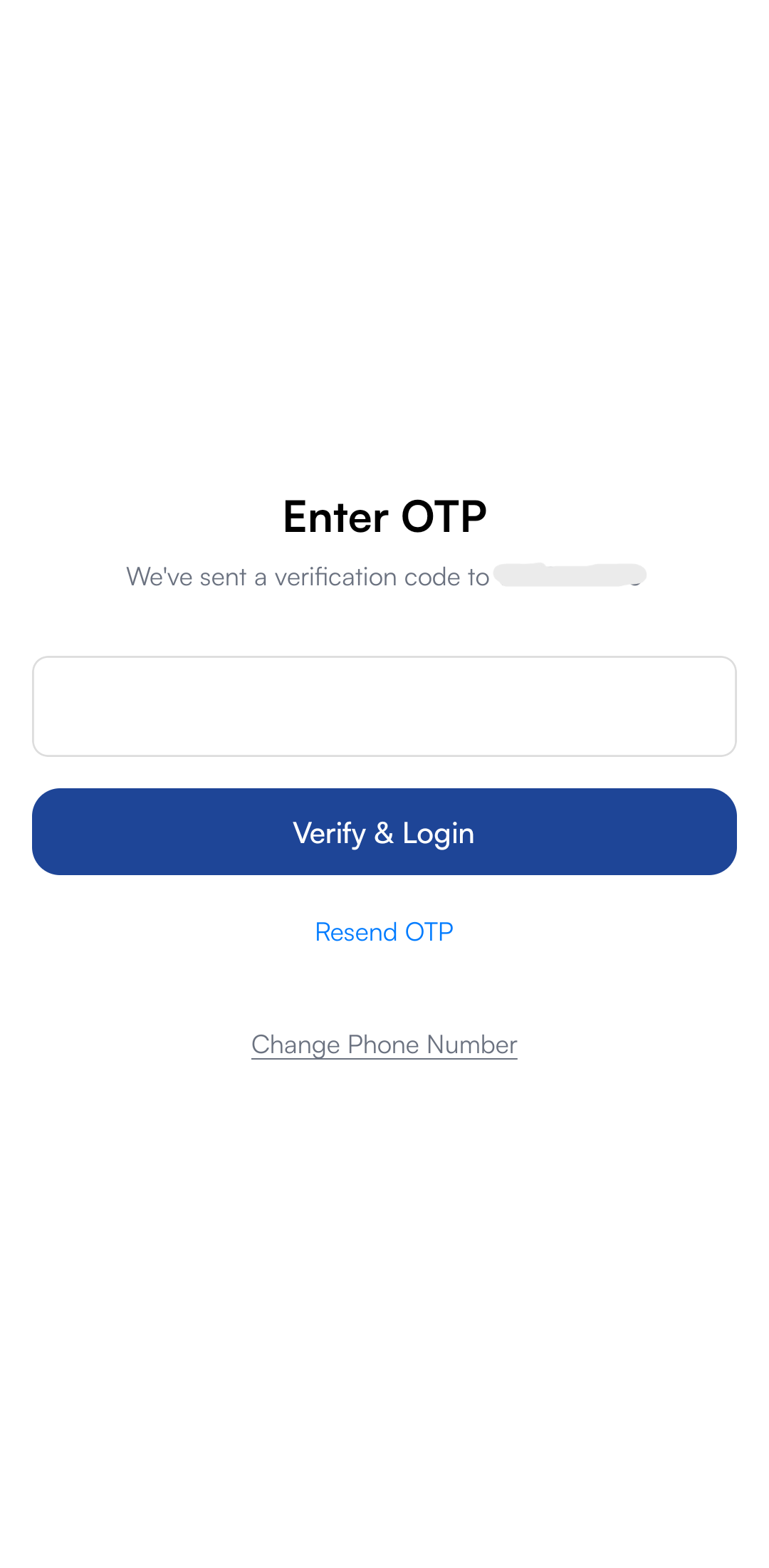
- You will receive a secure OTP (One-Time Password) via SMS.
- Enter the OTP to verify your identity.
Step 3: Personalized Setup
Enable Notifications
Stay updated on perk credits, expense approvals, and important announcements.
Biometric Security
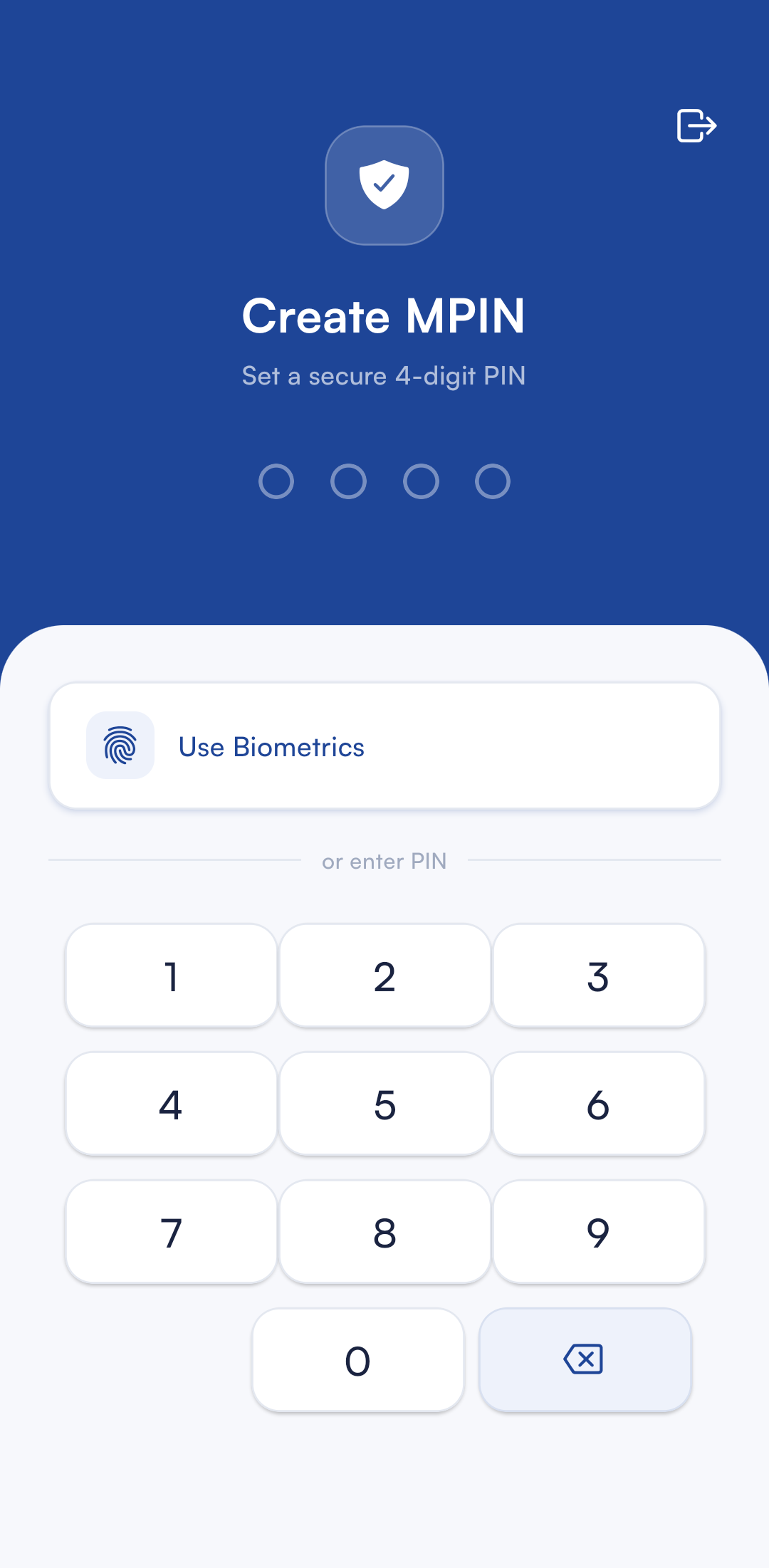
Set up a secure PIN, Fingerprint, or Face ID for faster and more secure access.
How to Create an MPIN & Enable Biometrics
- Set a secure 4-digit PIN during initial setup.
- Confirm your PIN by entering it again.
- Choose to Use Biometrics for even faster access.
Biometric Options:
- Fingerprint: Use your registered fingerprint for quick authentication.
- Face ID: Unlock with facial recognition (if your device supports it).
- PIN Fallback: Always have your PIN as a backup authentication method.
Security Tips:
- Keep your PIN private and don't share it with anyone.
- Enable biometrics for convenient access without compromising security.
Step 4: Navigating the Mobile Interface
The home screen is your control center for everything PerksPe.
Wallet
View your current PEP Coins balance and transaction history.
Card
Access your virtual/physical RuPay card details and controls.
Perks
Browse and use benefits like Food, Fuel, and Medical allowances.
Offers
Discover exclusive deals and discounts available to PerksPe users.
Step 5: Essential Mobile Tasks
Spending PEP Coins
Redeem your PEP Coins instantly at thousands of eligible merchants directly through the app or your linked RuPay card. For supported predefined perks, you can also enable or disable Auto Redemption as needed.
Expense Management
Submit business expenses in seconds:
- Tap the Expenses tab.
- Select Add Expense.
- Upload a photo of your receipt and enter the category/amount.
- Tap Submit—your manager will be notified immediately.
Status Tracking
Monitor your submissions in real-time:
- ⏳ Pending: Awaiting manager approval.
- ✅ Approved: Expense verified and ready for reimbursement.
- 🟥 Rejected: View comments to understand why and make necessary updates.